

In this page
What is the Content Status Indicator?
The Content Status Indicator displays the current status of a page or blog post. You can find it under the content title when viewing the page or blog post.
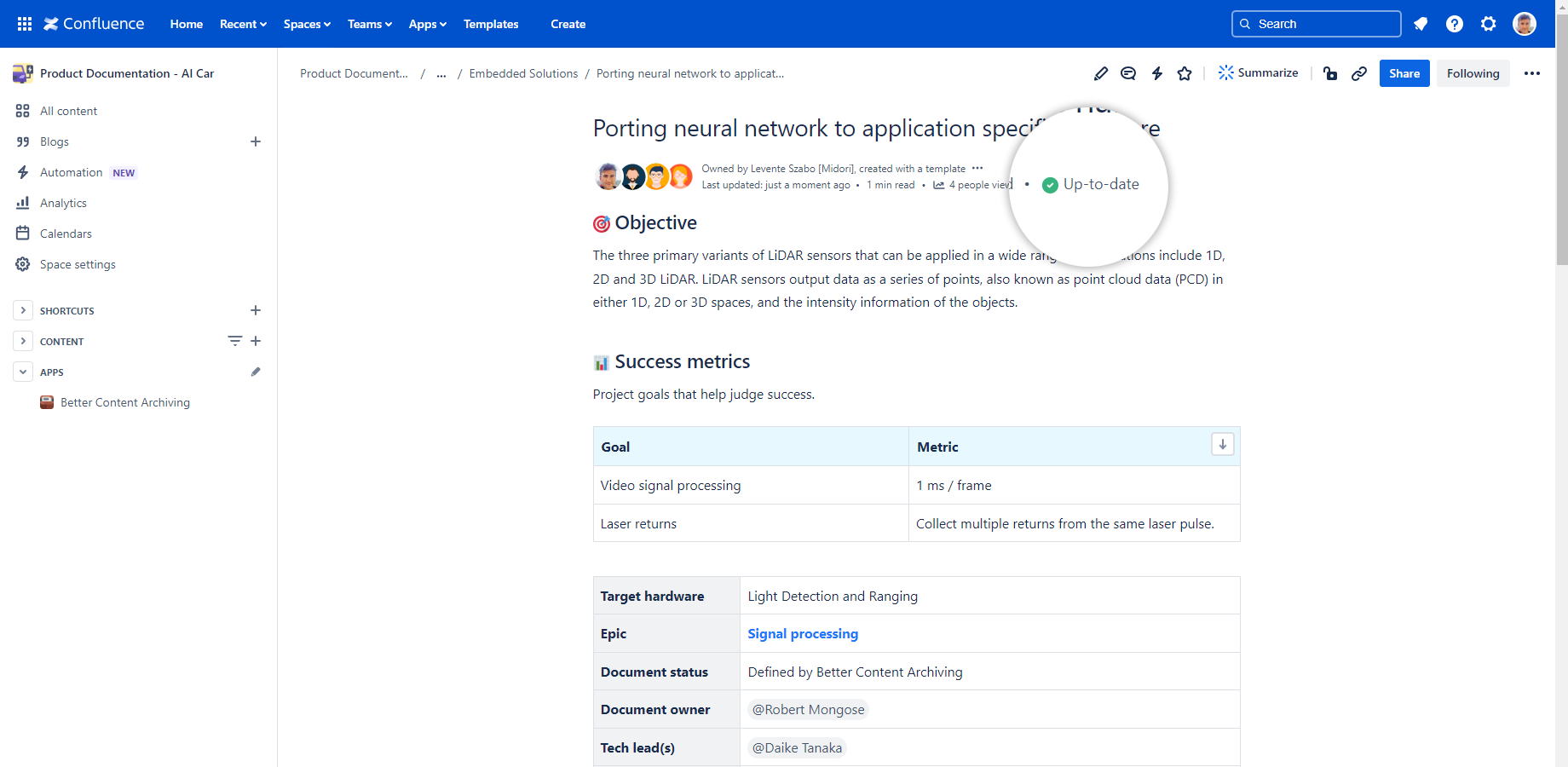
The two modes of the Content Status Indicator, explained in the next sections, show increasing levels of detail about the content.
Collapsed mode
This is the default mode when viewing a page or blog post.
In collapsed mode, the Content Status Indicator displays only the current status with its icon and name. By hovering the mouse over the icon, the status description and the time of the last status refresh will be shown in a tooltip.
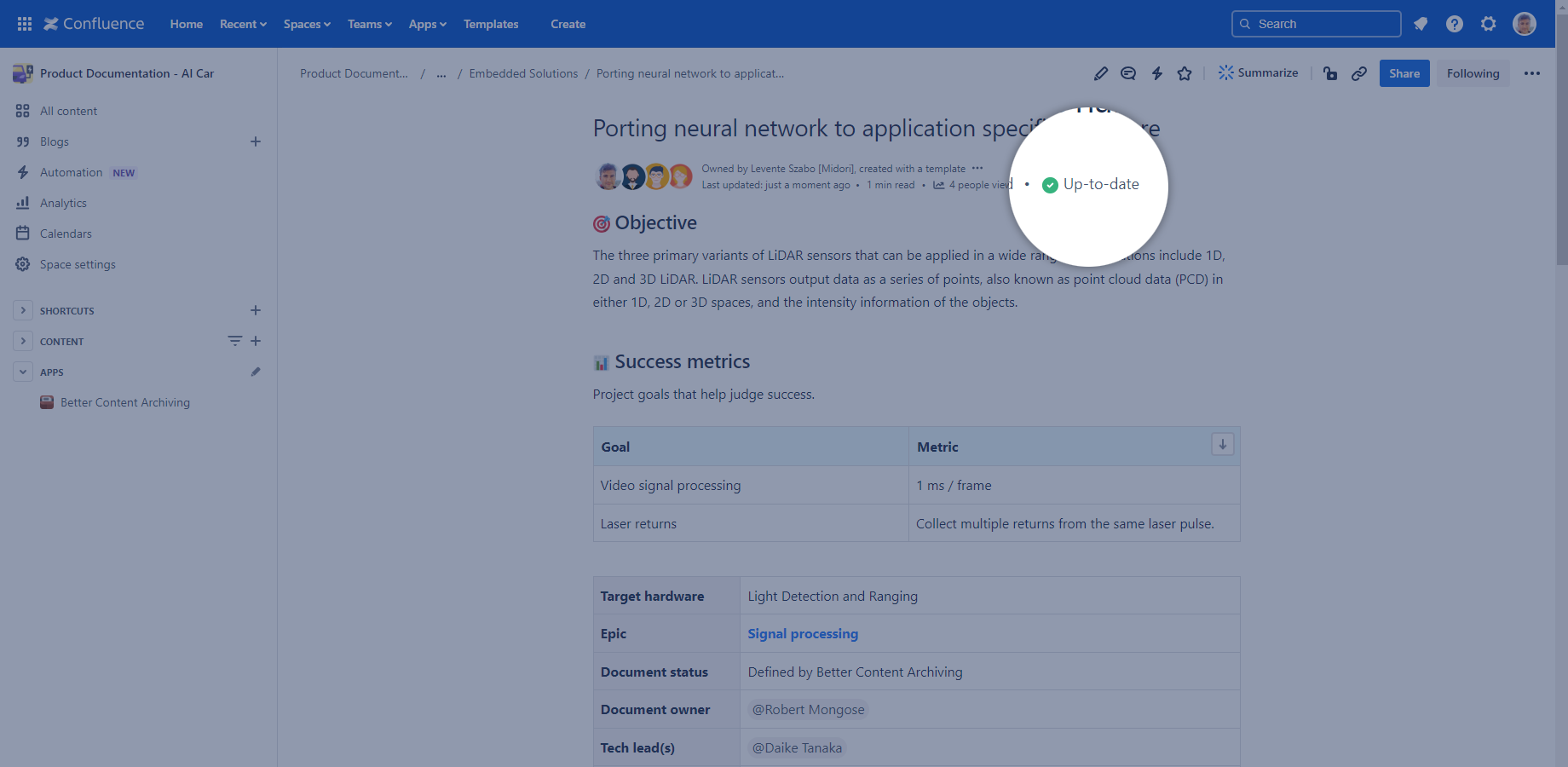
Notes:
- Regardless of manual actions affecting content statuses, the Refresh content statuses job will periodically refresh the status of all contents on your site.
- By design, Confluence doesn't show byline items like content status on space home pages the way it does on regular pages. As a result, the Content Status Indicator can only be accessed via More actions (…) → Apps → View content status.
Expanded mode
You can expand the Content Status Indicator by clicking the status icon or label.
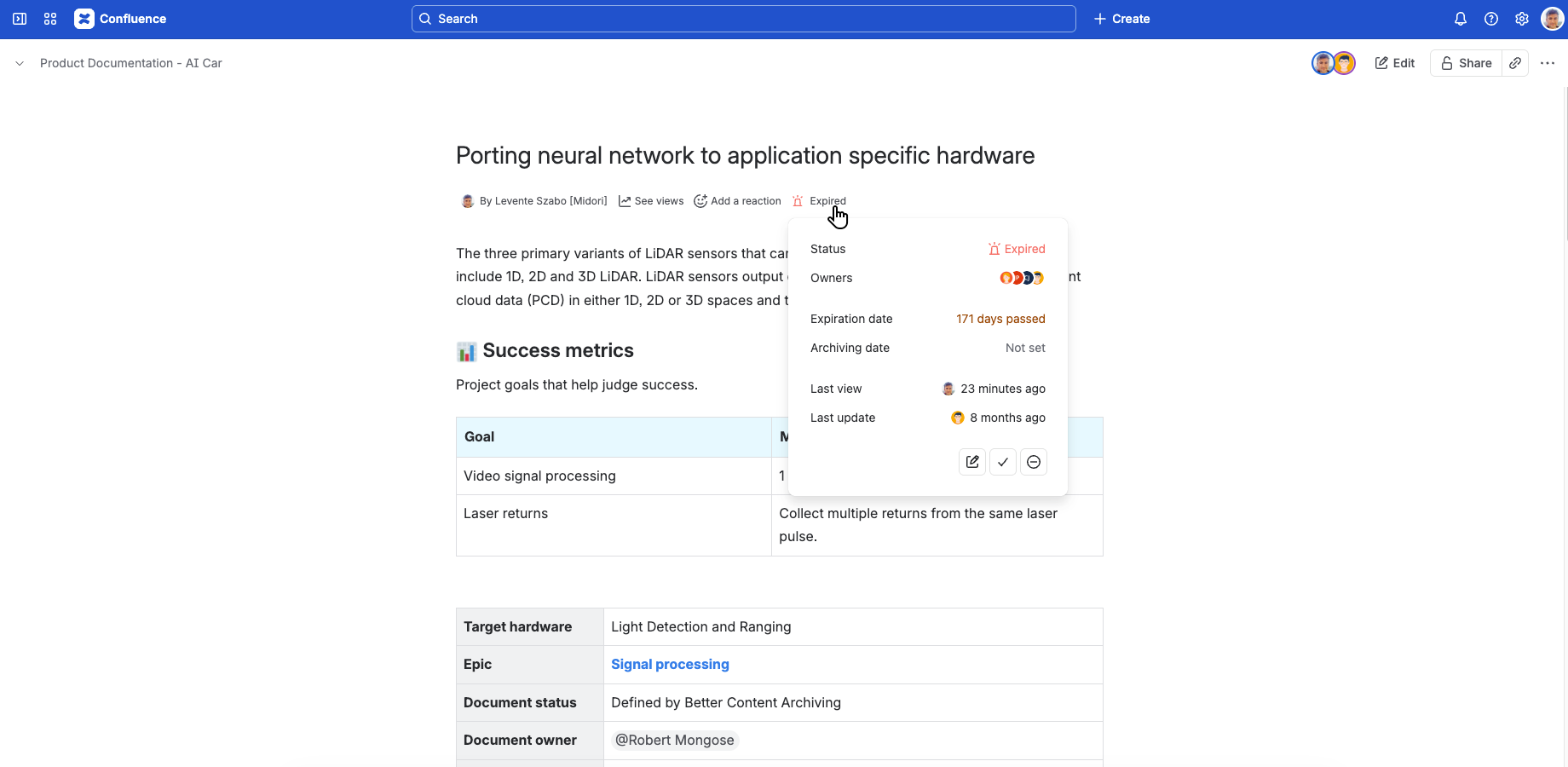
You can conveniently access the quick actions from this context: moving the cursor over a value reveals a small clickable icon for its action. For example, to set an expiration date, move the cursor over the current expiration date or the "Not set" value, and the action's icon reveals itself.
In expanded mode, the Content Status Indicator displays the following details, along with the quick action available for each:
| Field | Related quick actions |
|---|---|
| Content status (also known as page status or blog post status) |
View status details Open ancestor (if inherited) |
| Content owners (if set or inherited) |
Set owners |
| Expiration date (if set or inherited) |
Set expiration date Remove expiration date Open ancestor (if inherited) |
| Archiving date (if set or inherited) |
Set archiving date Remove archiving date Open ancestor (if inherited) |
| Last view (who and when) |
Content view analytics |
| Last update (who and when) |
Content update analytics |
Notes:
- A blurred field indicates an outdated value. If that's the case, the app keeps checking for a fresh status periodically until it is available: you will see a spinner appear and disappear every few seconds while the status is outdated. Hover over the blurred value with your mouse cursor (or focus on it using the keyboard) to make the value clear and readable.
- When opening the expanded mode, the current status will be displayed, which may occasionally be outdated at this point. To display the most current status information, a status refresh will be automatically started and the popup will be updated in a few seconds.
- Due to technical reasons, refreshing the content status may take noticeably long.
- Depending on which quick action is used, the content status or owner information may need to be recalculated. In such cases, these fields may temporarily become outdated.
- Fields can also become outdated as a result of quick actions applied earlier or by other concurrent users.
Missing permissions
If the app doesn't have access to the content (due to access control restrictions), the Content Status Indicator shows a "Missing permissions" or "Cannot refresh" message, and all quick actions except content view/update analytics are disabled. Click the message to see the detailed cause. If you have permission to fix the problem, click the Grant access button that appears to resolve it in a few clicks.
Questions?
Ask us any time.