

In this page
Integrity check reference
App version is up-to-date
Default content status scheme
Default notification scheme
Default automation scheme
Content events
Archiving capability
Other errors
What are integrity checks?
The Better Content Archiving for Confluence Cloud app offers a set of built-in integrity checks for validating the app's configuration. The checks detect the most common problems and provide hints for how to fix them.
It's a good idea to run the integrity checks when you get started with the app and any time you are facing problems. You can run them by navigating to Confluence Settings (cog icon "⚙" in the top right) → Apps → Better Content Archiving → Integrity checks.
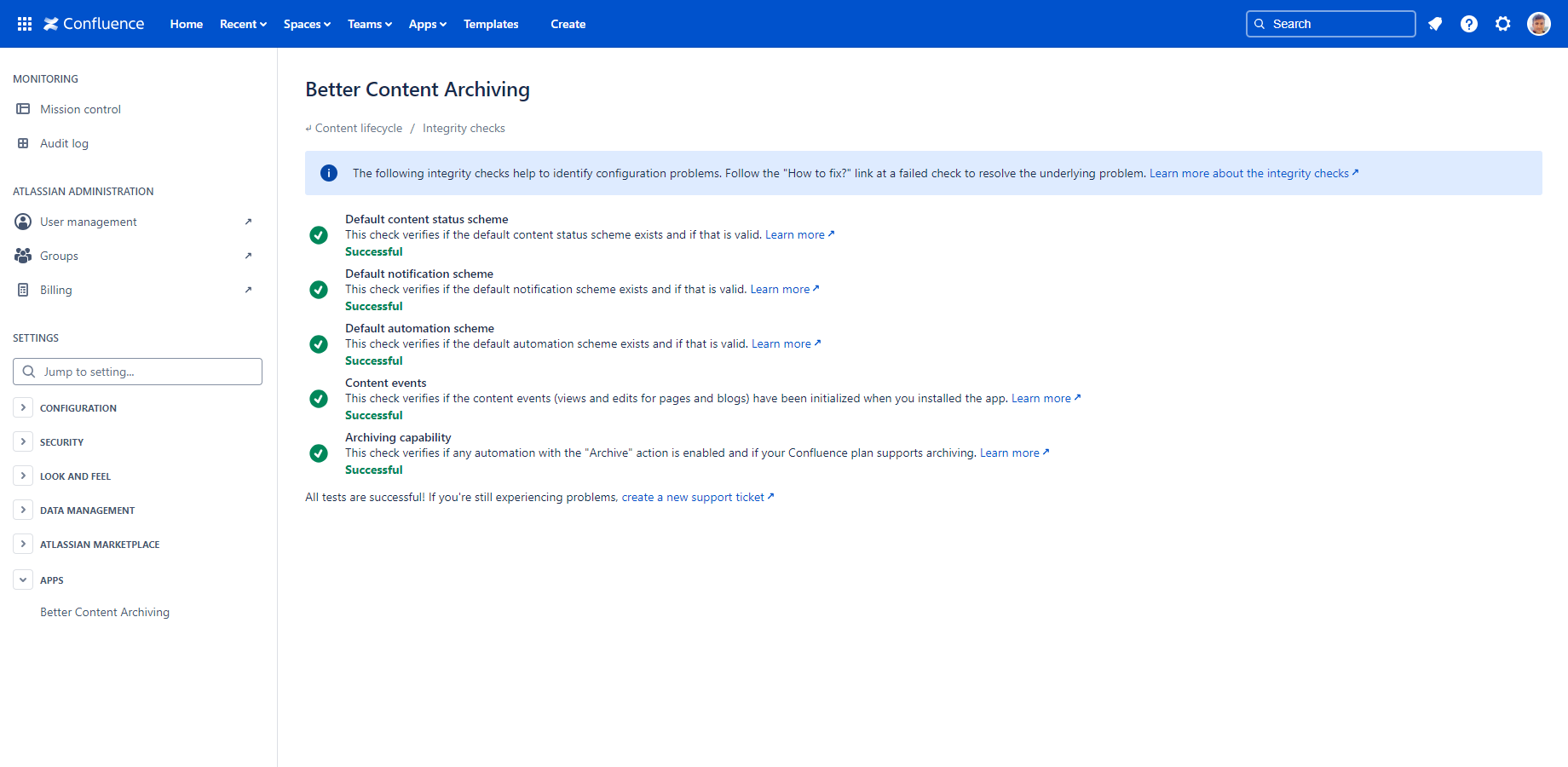
Note that when a check fails, it will give you a link to the documentation where you can learn more about the problem and how to fix it.
Integrity check reference
Below is the complete list of checks, with the purpose behind each one and what to do when it reports a warning or error.
App version is up-to-date
This check verifies if you are using the latest app version.
Purpose: To benefit from the latest features, improvements, and fixes, always use the most recent version of the app. In most cases, updates are performed automatically in the background without any action required. Occasionally, however, a new app version may require manual approval from your site administrator.
This check can warn for the following reasons:
| Warning message | Solution |
|---|---|
| "App version might be outdated" |
|
Default content status scheme
This check verifies if the default content status scheme is configured correctly.
Purpose: The app requires a default content status scheme to work properly. You can create additional content status schemes, but a default one must exist at all times. It is required because the spaces without an explicitly applied content status scheme will use the default one.
This check can fail for the following reasons:
| Error message | Solution |
|---|---|
| "The default content status scheme is missing!" |
|
| "The default content status scheme doesn't contain any items!" |
|
| "The last status in the default content status scheme must have an empty CQL and an empty recursive CQL!" |
|
Default notification scheme
This check verifies if the default notification scheme is configured correctly.
Purpose: The app requires a default notification scheme to work properly. You can create additional notification schemes, but a default one must exist at all times. It is required because the spaces without an explicitly applied notification scheme will use the default one.
This check can fail for the following reasons:
| Error message | Solution |
|---|---|
| "The default notification scheme is missing!" |
|
| "The default notification scheme doesn't contain any items!" |
|
Default automation scheme
This check verifies if the default automation scheme is configured correctly.
Purpose: The app requires a default automation scheme to work properly. You can create additional automation schemes, but a default one must exist at all times. It is required because the spaces without an explicitly applied automation scheme will use the default one.
This check can fail for the following reasons:
| Error message | Solution |
|---|---|
| "The default automation scheme is missing!" |
|
| "The default automation scheme doesn't contain any items!" |
|
Content events
This check verifies if the content events have been properly initialized.
Purpose: The app needs to reliably know the last view and update of each content, referred to as content events, because content statuses may depend on them. Content events aren't readily available right after installation. They require an explicit initialization, which normally only needs to be done once, and never again.
This check can fail for the following reasons:
| Error message | Solution |
|---|---|
| "The content events have not been initialized yet!" |
|
Archiving capability
This check verifies if you are using the "Archive" automation action anywhere, and if the current Confluence plan actually supports archiving. The Free plan doesn't.
Purpose: The "Archive" automation action requires a Confluence plan that supports archiving, so it won't work on (or after downgrading to) the Free plan. If you don't use this action, your plan doesn't matter, and the check always succeeds.
This check can fail for the following reasons:
| Error message | Solution |
|---|---|
| "You have enabled at least one automation with the "Archive" action, but the Confluence Free plan you are currently using does not support archiving!" |
Or:
|
Other errors
Integrity checks might fail for other, unexpected reasons as well. It can also happen that all checks pass, but you still run into problems using the app. Therefore, treat integrity checks as a general first line of app verification rather than a universal health check that is always 100% accurate.
If any problem persists, open a support ticket and we will help.
Questions?
Ask us any time.