

In this page
How to apply schemes to spaces
Explicitly apply a scheme
Multiple spaces
Single space
Implicitly apply the default scheme
Multiple spaces
Single space
How are schemes applied to spaces?
Applying a scheme to a space tells the Better Content Archiving app which scheme to use when processing that space. For example, applying a content status scheme determines how content statuses are assigned in the space, and applying an automation scheme determines when contents get archived or deleted in the space.
The app determines which scheme to use for a space like this:
- If there is a scheme explicitly applied: the applied scheme takes effect.
- If there is no scheme explicitly applied: the default scheme takes effect. If a different scheme is later set as the default, the space automatically starts using that new default scheme.
How to apply schemes to spaces
By default, right after initial setup, all your spaces already use the default scheme. You do not need to do anything if that's what you want. If you want to use any other scheme, you have to explicitly apply it to a space.
Rules:
- There are three independent scheme types: content status, notification, and automation. Everything below applies to each of them separately.
- Every space, except excluded ones, always uses a scheme: there is no such thing as a space without one. If you don't explicitly apply a scheme, it uses the default scheme instead.
- Newly created spaces use the default scheme.
- Schemes can be mixed and matched: a space can use one content status scheme and a different notification scheme, for example.
Explicitly apply a scheme
You can apply a scheme to multiple spaces in one go, or to a single space.
Multiple spaces
Go to Confluence Settings (cog icon "⚙" in the top right) → Apps → Better Content Archiving. In the Configuration box, click the corresponding scheme type, then in the list, click the Apply to spaces link at the scheme.
It requires Confluence administrator permission.
A dialog opens, listing your Confluence spaces and the scheme currently applied to each. Excluded spaces are not listed.
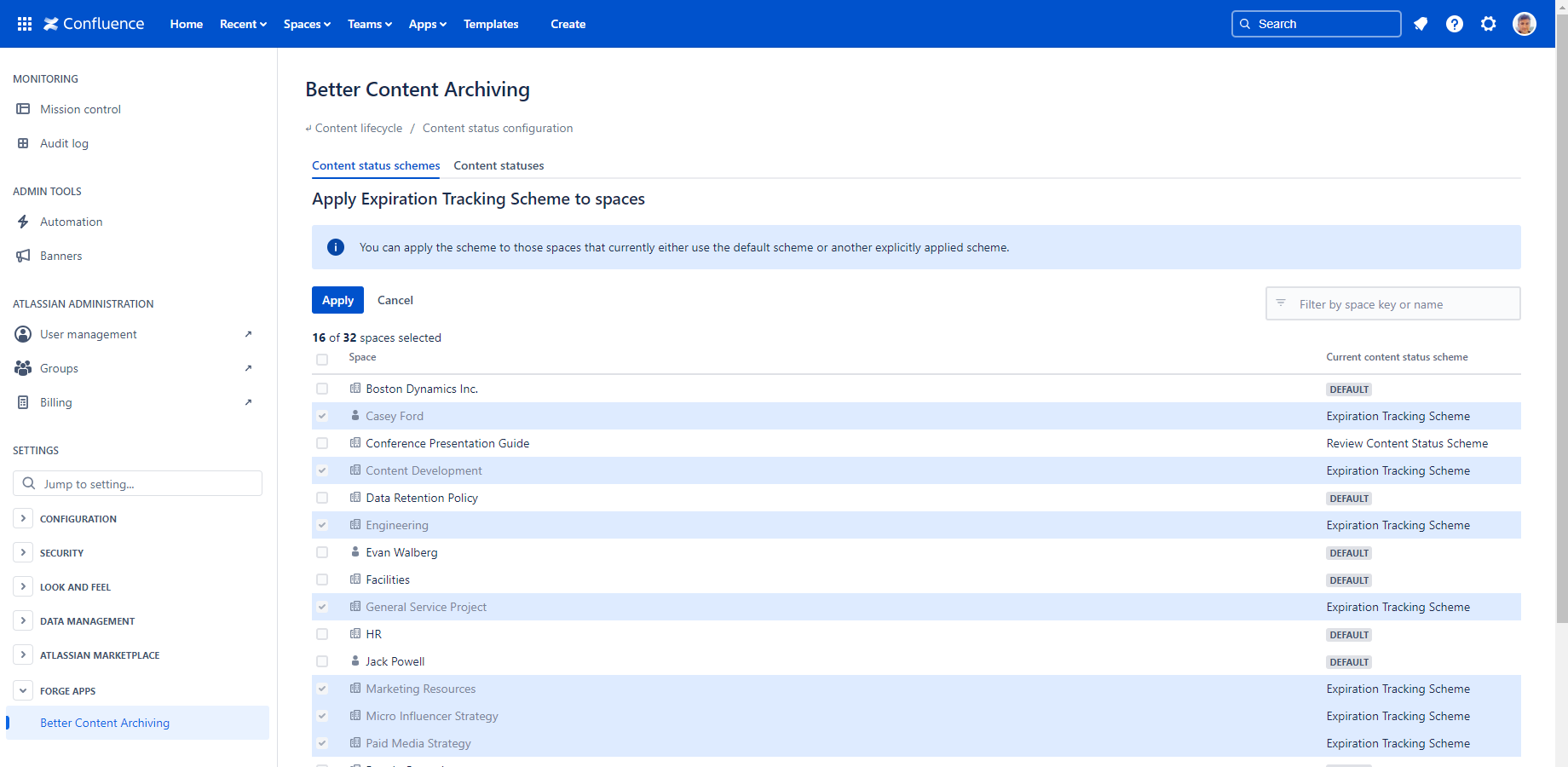
You can filter the list by text, and select spaces using the checkboxes. Spaces already using the scheme are checked and disabled. Click Apply to confirm, or Cancel to discard.
Notes:
- Spaces that use the default scheme implicitly are marked with "Default".
- You can click Apply to spaces for the default scheme too, which applies it explicitly. This is useful if you want a space to keep using the current default scheme even after another scheme becomes the default.
Single space
Open the space, click Space Settings → Integrations → Better Content Archiving. You can see a tab for each scheme type, showing a read-only view of the scheme applied to the space, marked with "Default" if it's applied implicitly.
It requires Confluence administrator or Space administrator permission.
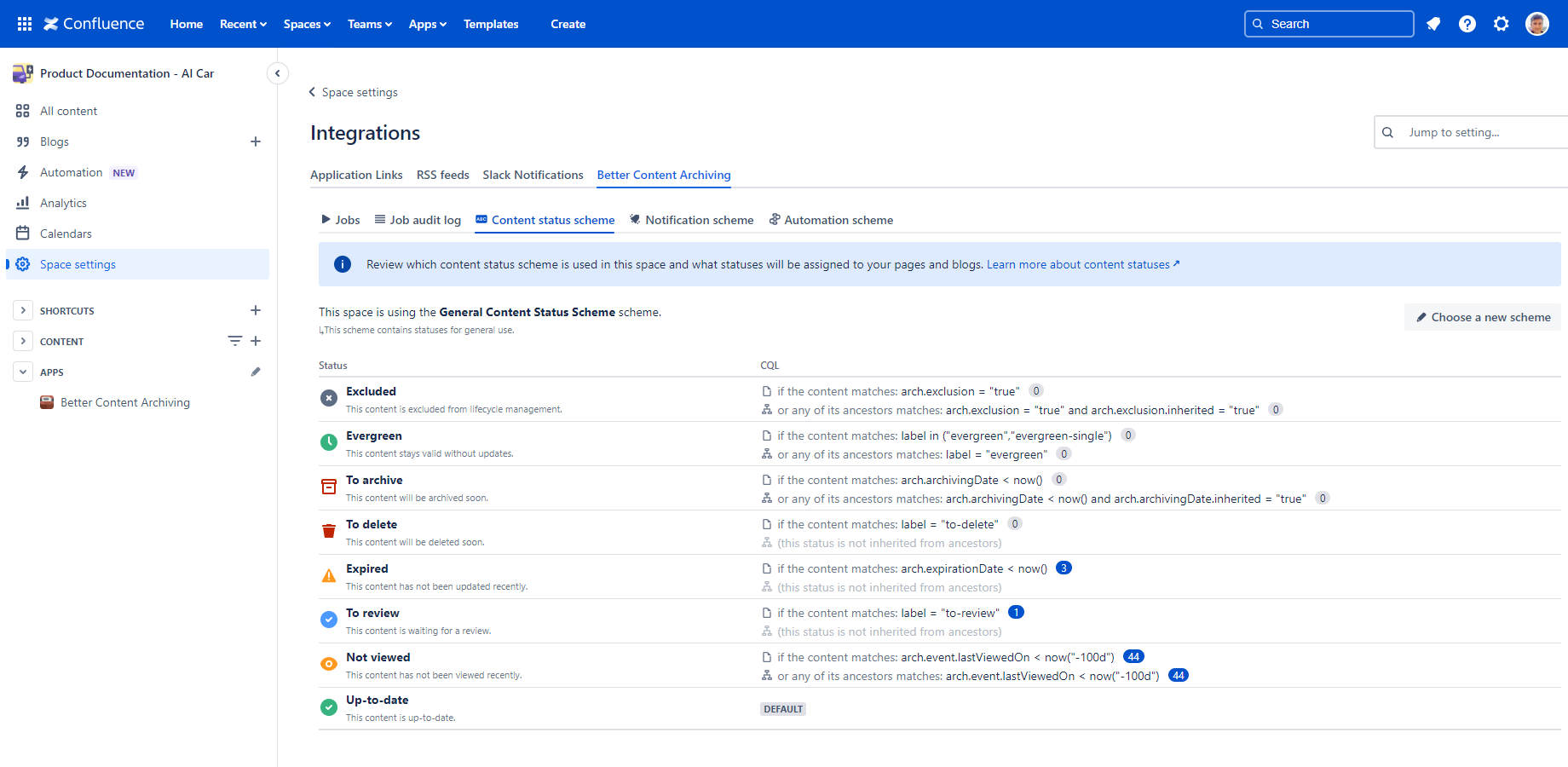
Click Choose a new scheme to open the dialog, then select a concrete scheme from the list below the top option, not the "(Default Scheme)" item at the very top.
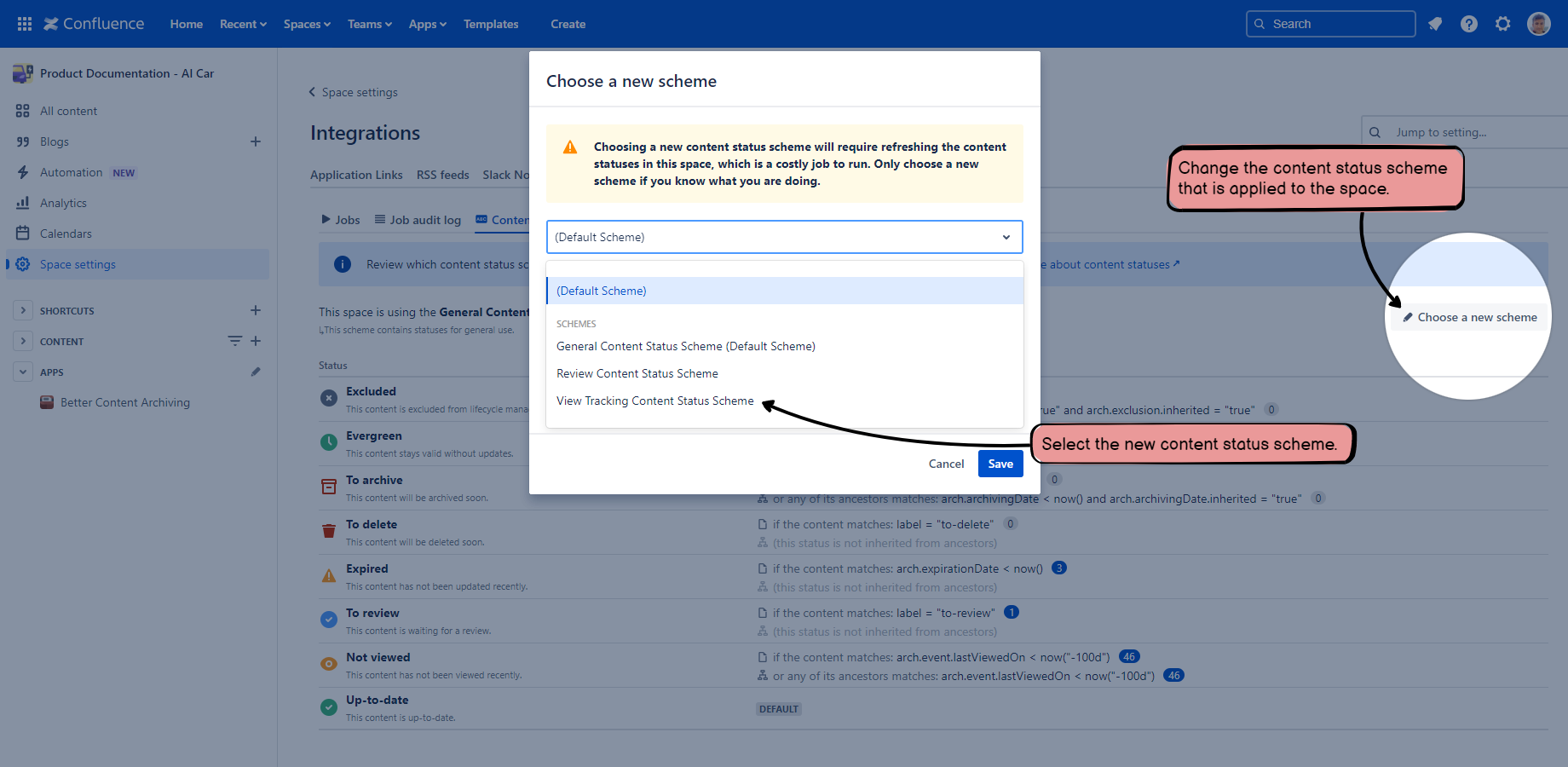
Note: this list also includes the default scheme, shown with "(Default Scheme)" appended to its name. Selecting it applies the default scheme explicitly, just like any other scheme.
Implicitly apply the default scheme
You can apply the default scheme implicitly to multiple spaces in one go, or to a single space.
Multiple spaces
Navigate to the scheme list the same way as for explicit application: go to Confluence Settings (cog icon "⚙" in the top right) → Apps → Better Content Archiving, then in the Configuration box, click the corresponding scheme type.
To apply the default scheme implicitly to multiple spaces at once, click the "..." icon at the top of the scheme list, and select Apply the default scheme to spaces.
This opens the same Apply to spaces dialog used for explicit application; select spaces the same way.
Single space
Navigate to the dialog the same way as for explicit application: open the space, click Space Settings → Integrations → Better Content Archiving, then click Choose a new scheme.
Select the "(Default Scheme)" option at the top of the dropdown instead, to apply it implicitly.
Questions?
Ask us any time.