

In this page
Set expiration date
The Set expiration date quick action sets the expiration date for the page and optionally for its descendant pages. Use it to schedule when a page should be considered expired, driving statuses, notifications, or automations off that date.
How to use
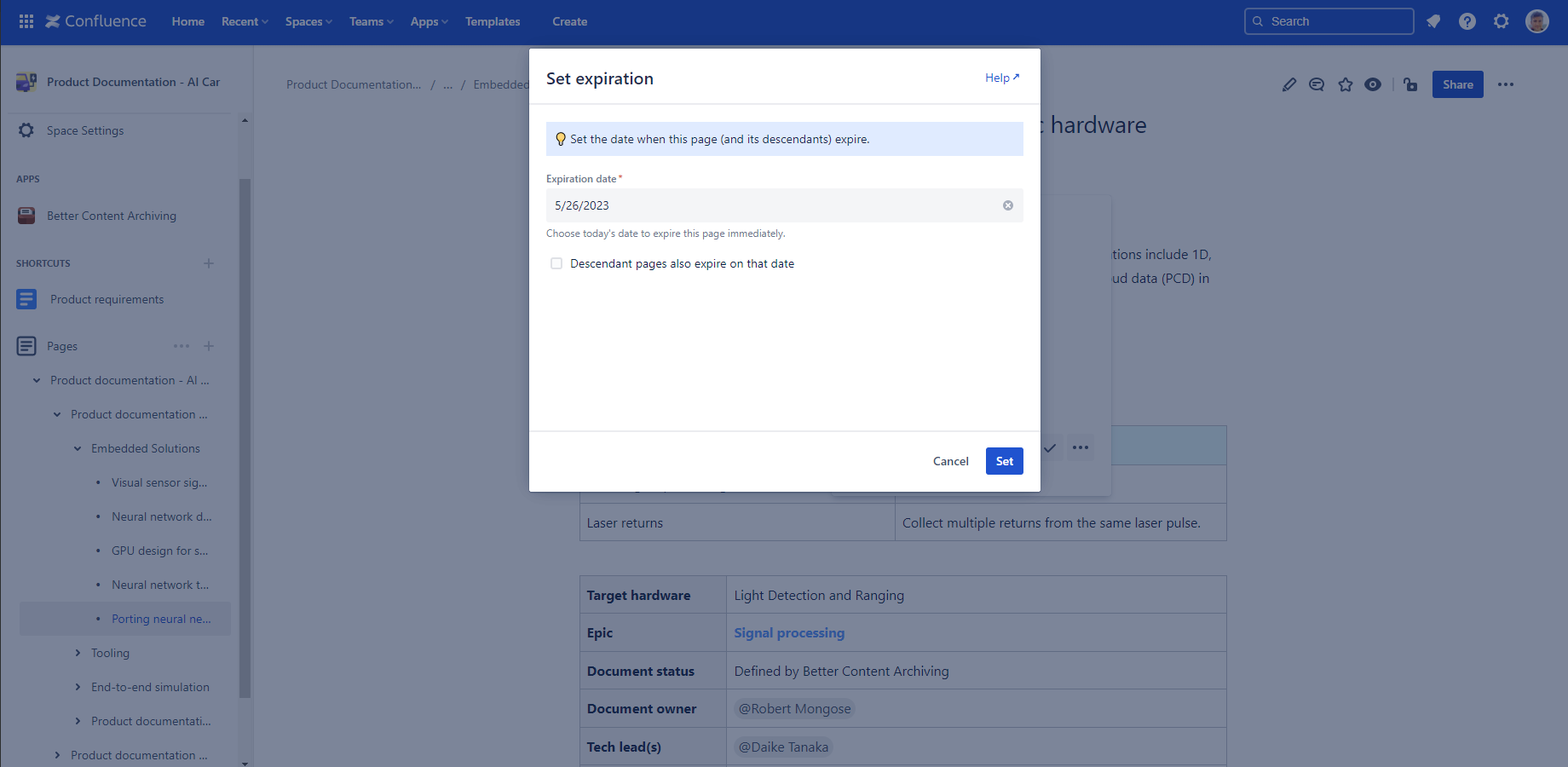
Its icon appears when hovering over the expiration date value (or the "Not set" placeholder) in the Content Status Indicator.
In the dialog, if there are inherited dates, they are listed along with the ancestor page they have been inherited from. Among them, the effective date is highlighted, since that's the one actually used as the expiration date. This distinction matters when the current page and one or more of its ancestors all have an expiration date set.
Remove expiration date
The Remove expiration date quick action removes the expiration date from the page and its descendant pages (if applicable). Use it once a scheduled expiration is no longer relevant.
How to use
Its icon appears when hovering over the expiration date value in the Content Status Indicator, but only if an expiration date is directly set on the page.
If the page has descendant pages, you can choose whether to remove the expiration date from them as well. If a descendant still inherits an expiration date from another ancestor, that date remains in effect.
Open ancestor
The Open ancestor quick action opens the ancestor page from which the current page inherits its effective expiration date. Use it to quickly navigate to that page instead of manually checking pages up the hierarchy.
How to use
Its icon appears when hovering over the expiration date value in the Content Status Indicator, but only if the effective date is inherited from an ancestor.
Clicking it takes you directly to the concrete ancestor the expiration date was inherited from, letting you quickly navigate there if you want to edit the source of the inherited value. If an expiration date is set on an ancestor page, and the date is set to propagate to descendant pages (up to a depth of 5 levels), the current page inherits that date from the ancestor. If there are multiple dates inherited, the earliest one is marked as effective.
Under the hood
Set expiration date and Remove expiration date update or clear the following CQL fields:
- arch.expirationDate
- arch.expirationDate.inherited
- arch.expirationDate.setBy
- arch.expirationDate.setOn
Questions?
Ask us any time.