

In this page
Use quick actions while viewing pages
Use quick actions from the content list
Available quick actions
Quick action triggered status changes
Typical pitfalls
What is a quick action?
There are several ways to take manual actions which affect the lifecycle of a page:
- Some are trivial and natural (e.g. editing).
- Some may require attention (e.g. modifying labels).
- Some cannot be done via the built-in functions (e.g. modifying content properties).
To handle all of these consistently, the app offers so-called quick actions: a friendly, controlled and less error-prone way to take any of these actions directly from the Content Status Indicator or from a content list.
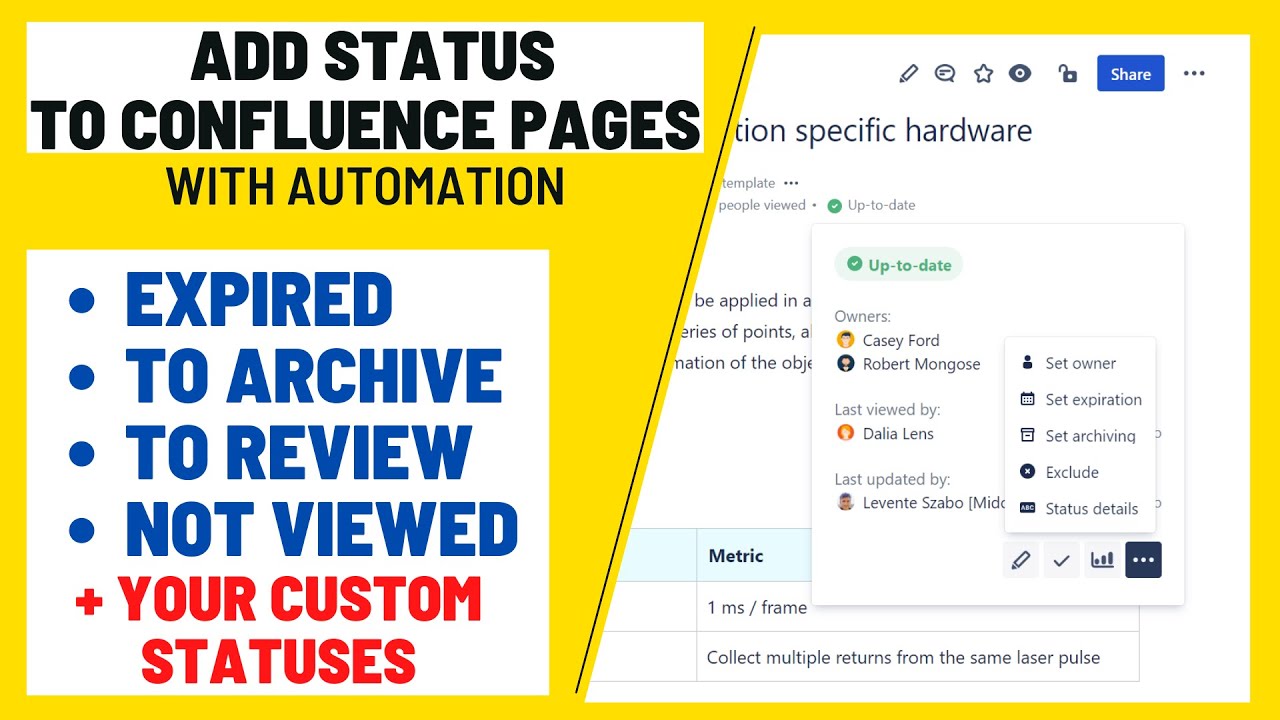
This video gives a 3-minute introduction to quick actions:

Use quick actions while viewing pages
Quick actions appear as small clickable icons when hovering over the values corresponding to them in the Content Status Indicator. For example, to set an expiration date, move the cursor over the current expiration date or the "Not set" value, and the action's icon reveals itself.
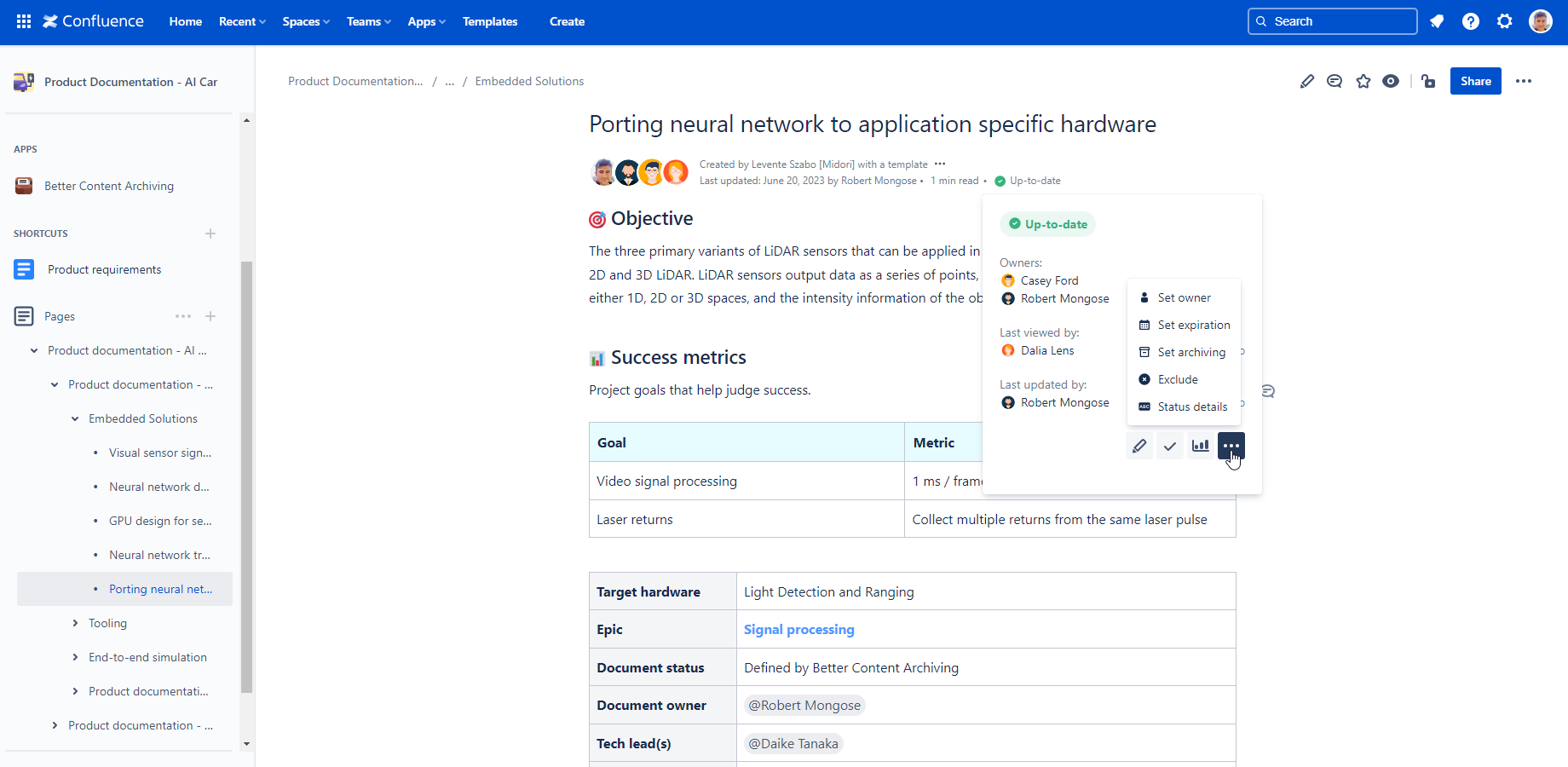
After clicking one of the quick actions, you can configure its parameters and submit it with ease:
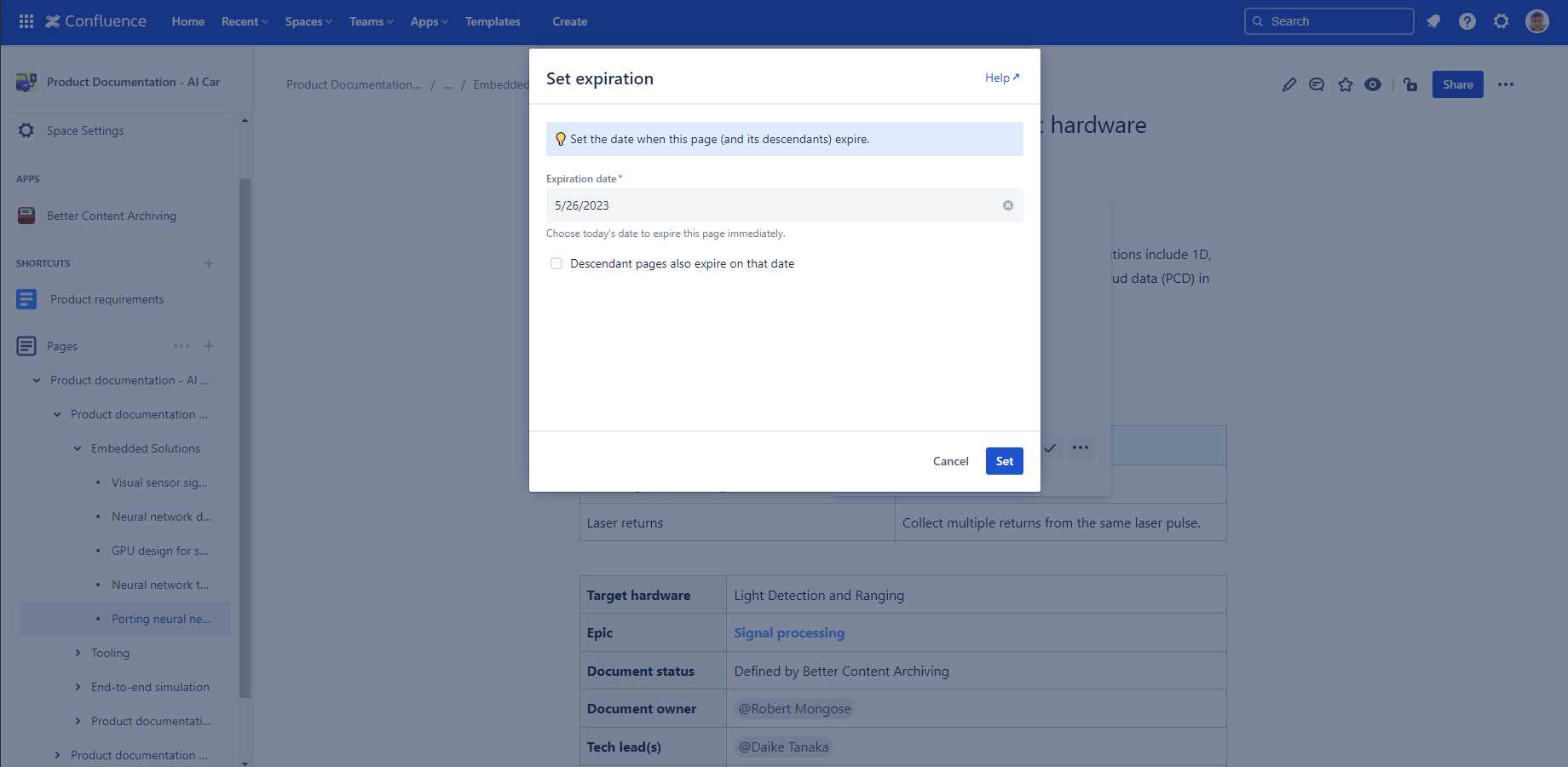
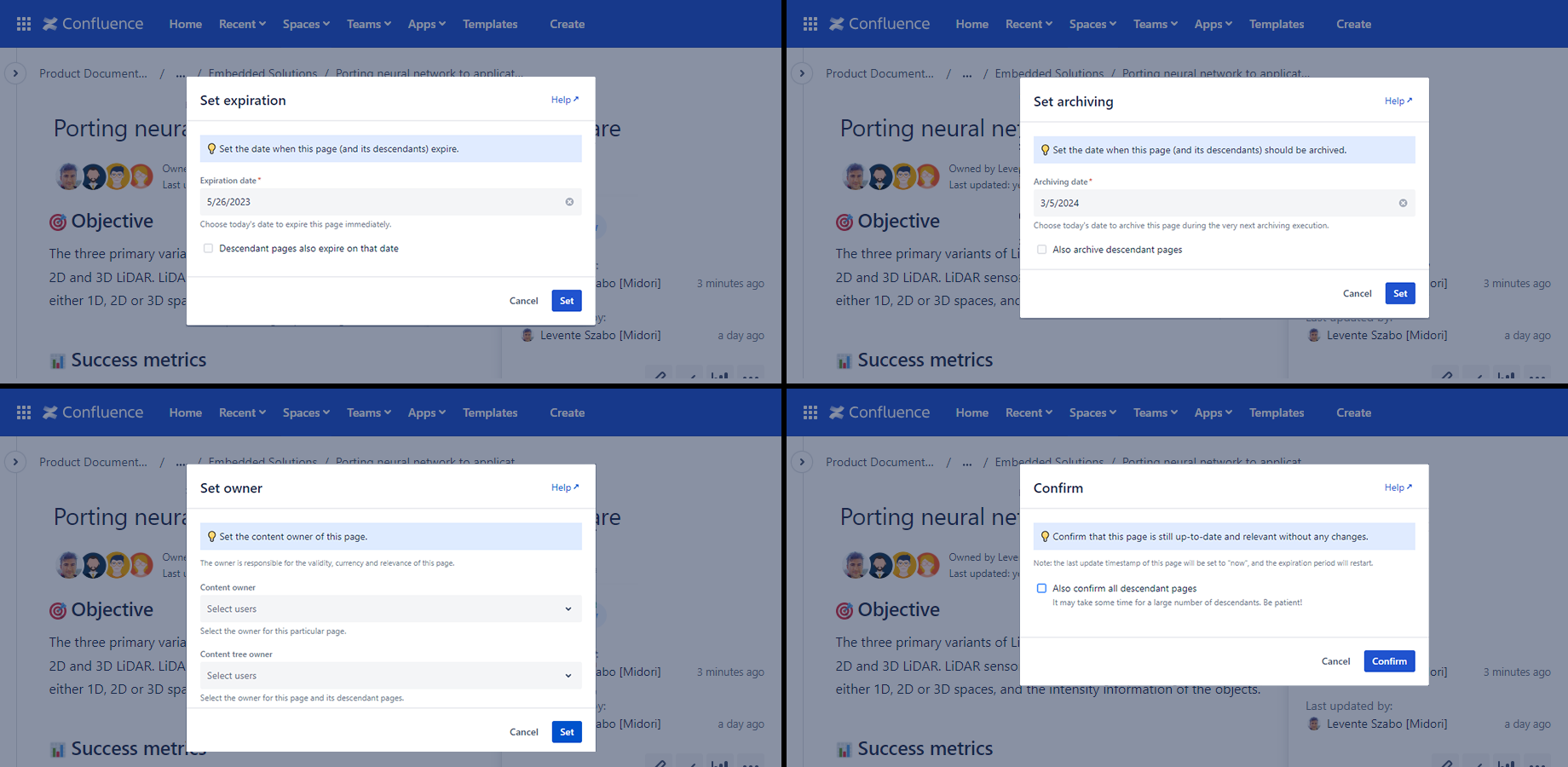
Note that different quick actions have different parameters:
Use quick actions from the content list
Quick actions are accessible the same way in content lists: hovering over a value reveals its icon. (These content lists appear on different dashboards and in the macros.)
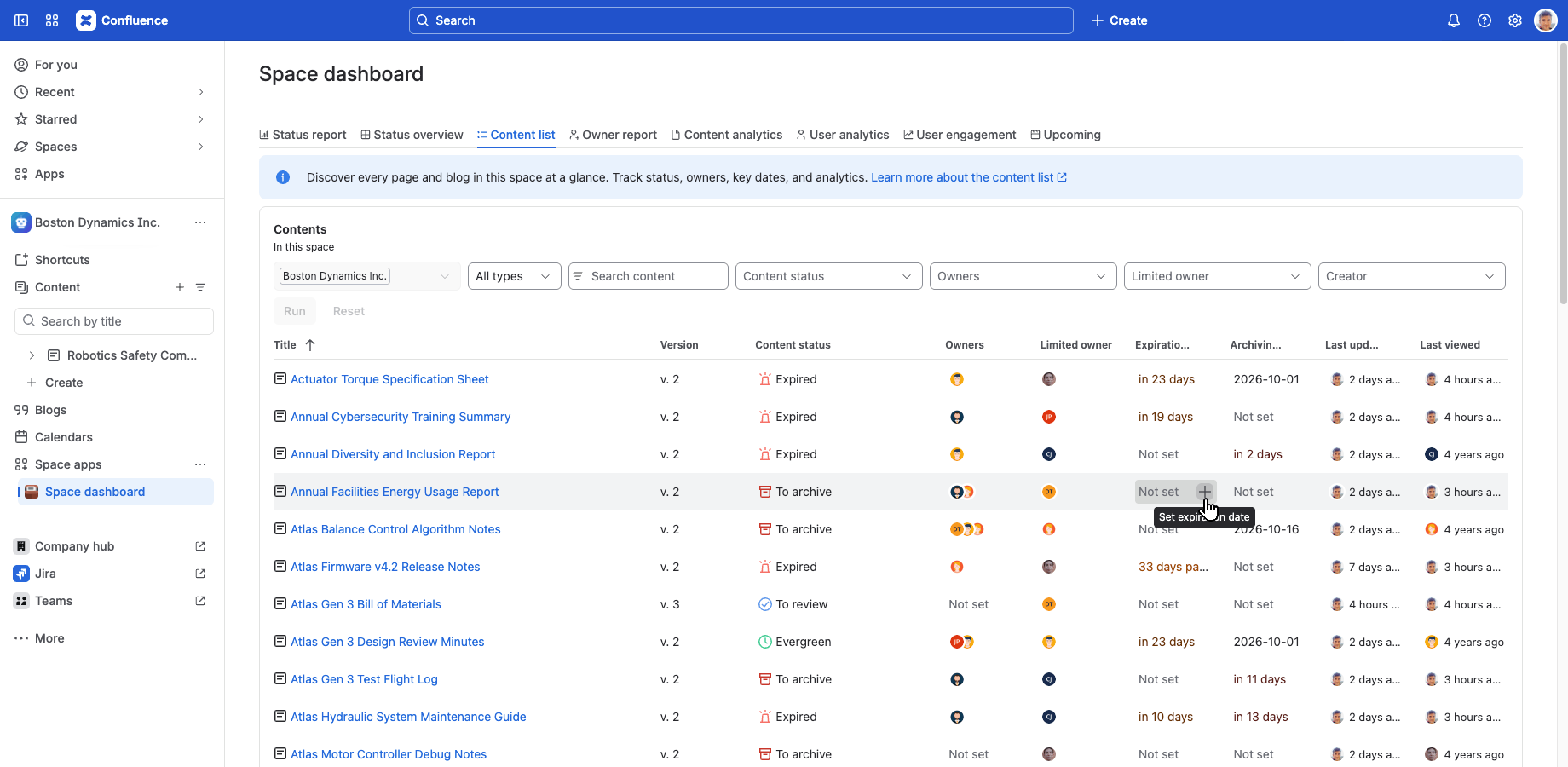
After clicking any of the quick action icons, you can use it the same way as described above, with slight differences.
Available quick actions
The app offers several features that help you manage the lifecycle of contents on your site.
| Quick action | What it does & when to use it |
|---|---|
| View status details | Shows which CQL conditions the content was checked against in its content status scheme. Use it to understand why a page has its current status. |
| Set owners | Sets one or more owners for a page, optionally for its whole subtree. Use it to make accountability and notifications more flexible than Confluence's built-in ownership. |
| Set/remove expiration date | Sets or clears the date after which content is considered expired. Use it to drive statuses, notifications, or automations off a deadline. |
| Set/remove archiving date | Sets or clears the date on which content should be archived. Use it the same way as expiration dates, but for archiving. |
| View content analytics | Opens the list of view/update events for a page. Use it to gauge how actively a page is being read or edited. |
| Update/confirm content | Opens the editor, or marks content as up-to-date without changing it. Use it when reviewing outdated content to either fix it or confirm it's still valid. |
| Exclude/include content | Removes or restores a page's participation in lifecycle management. Use it for content that shouldn't follow the space's normal rules. |
Quick action triggered status changes
When you execute a quick action, the status of the page is immediately refreshed. Depending on the page's current status and on the quick action, this recalculation can have one of three outcomes:
- The page's status changes immediately. For example, if you have a page that expired due to not being updated for 100 days and you use the "confirm" action, it becomes "up-to-date".
- The status change is not immediate. For example, if you set a future date for expiration, the page may remain "up-to-date" right after submitting the quick action.
- There is no actual effect. For example, if you set an archiving date for a page, but the applied content status scheme does not use the arch.archivingDate field in any of its CQLs, nothing is going to happen.
To understand how a change made through a quick action flows through the system and ultimately results in a content status change, see this section of the content status schemes documentation.
Typical pitfalls
In some cases, however, the refreshed content status may not appear intuitive at first glance. Typical problems include:
| Problem type | Why it happens | Example |
|---|---|---|
| Inheritance from an ancestor page | A page higher in the content hierarchy has a property that overrides the status for its descendant pages. | If you have a page in status "Excluded" and you "include" it, it remains "Excluded". This is because it has an ancestor that is excluded along with its descendants. |
| Missing statuses in the scheme | A required status has not been implemented in your scheme. | If you "exclude" a page, it remains included, because the applied content status scheme does not use the "Excluded" status or filter for the arch.exclusion content property. |
| Status precedence within the scheme | The statuses in the scheme are evaluated in order: a more general CQL condition placed earlier may override a more specific one that appears later. | If you "exclude" a page, it remains included even though you configured the status properly, because some other status is positioned higher and always matches first. |
| Misleading status names | Multiple status names have similar meanings and can be confused. | If a page expired both due to inactivity and due to a past expiration date, and you use "confirm," it remains "expired". This is because only one of the two CQL conditions was cleared. |
Tip: when you see the page in an unexpected status after taking a quick action, look at the status details. It will explain the cause.
These and similar problems are caused by "misconfigured" lifecycle rules and are relatively rare. They can typically be fixed by reviewing the content status scheme applied to the space that contains the given content. After fixing the scheme, run the Refresh content statuses job on that space, or wait for its next scheduled run.
Questions?
Ask us any time.